 How to use
How to View a QR Code on a Website or Social Media and Scan It in Pokémon TCG Pocket on One Phone
Save a QR code from a website or social media and import it into Pokémon TCG Pocket using the same phone.
Scanning Instructions
On iPhone (iOS)
These instructions use Google Chrome.
On the QR code image,touch and hold and selectSave image in… from the menu. If Save in Photos appears directly, select it instead.
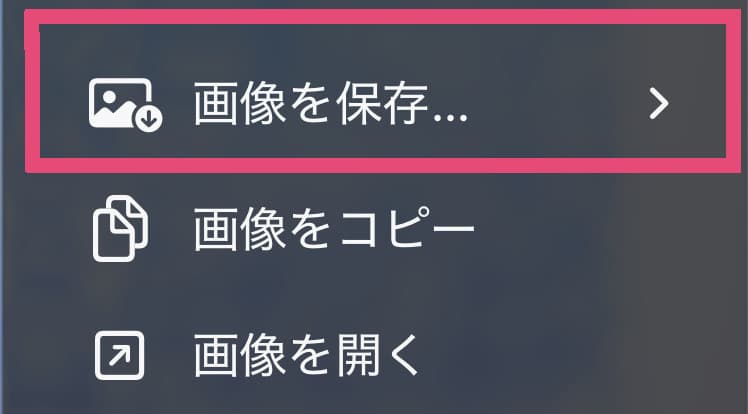
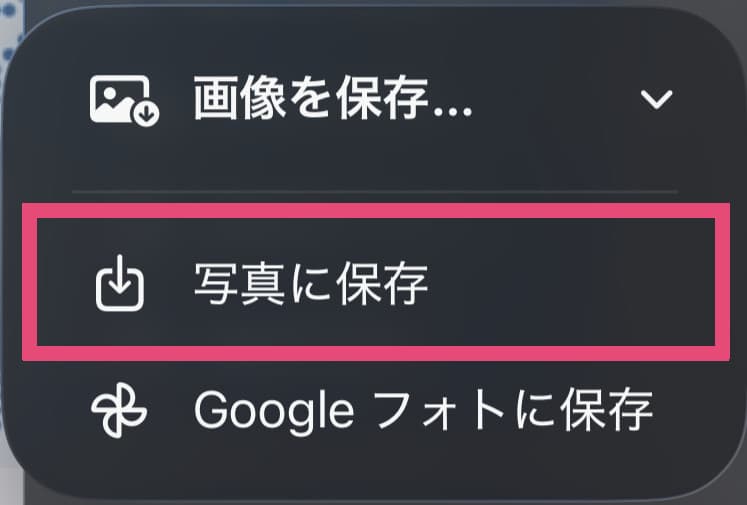
If saving to Google Photos is available, a submenu opens. Select Save in Photos.
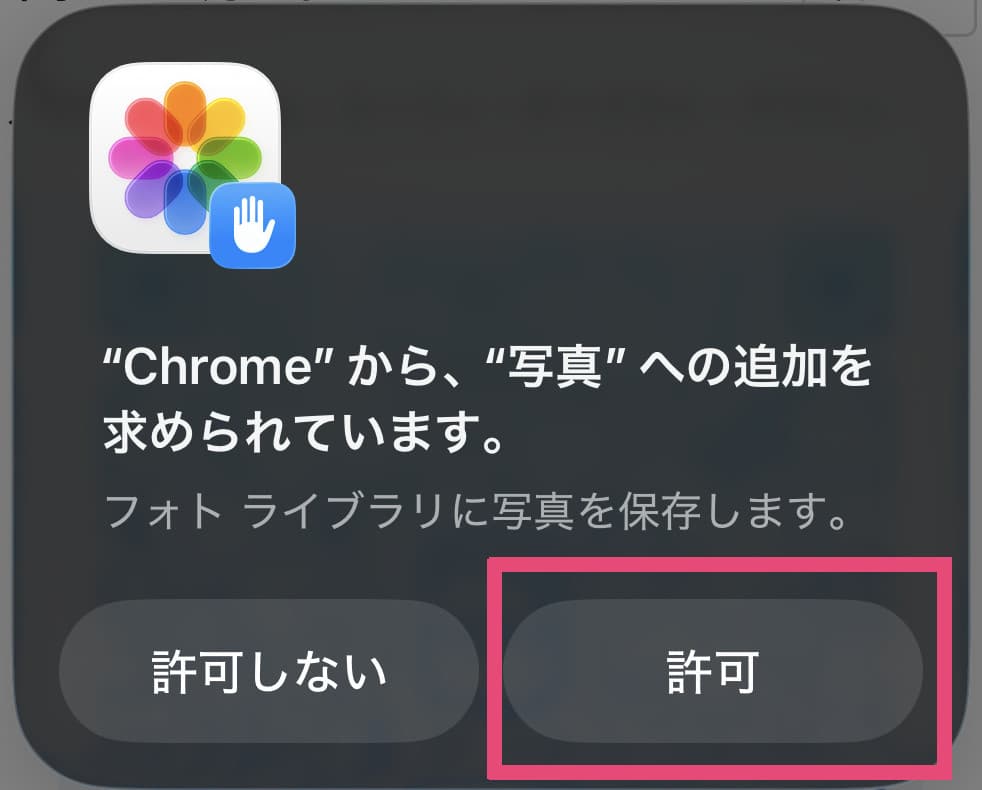
If a confirmation prompt appears, allow Chrome to save the photo.
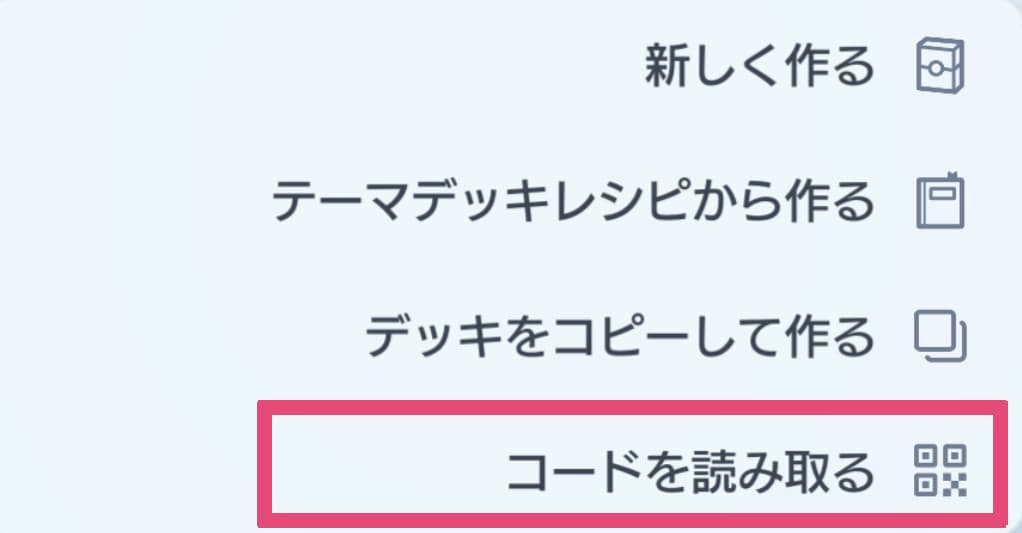
Open Pokémon TCG Pocket, start creating a new deck, and choose the option to scan a code.
When the camera opens, choose the option to scan a saved image at the bottom right.
Select the saved image from your photo library to create the deck.
On Android
These instructions use Google Chrome.
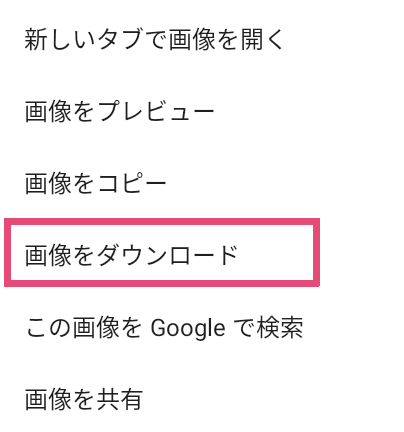
Touch and hold the QR code image, then select Download image from the menu.
Open Pokémon TCG Pocket, start creating a new deck, and choose the option to scan a code.
When the camera opens, choose the option to scan a saved image at the bottom right.
Select the saved image from the file picker to create the deck.